How to Clean a Computer Mouse
The best way to clean a computer mouse is to unplug it (or remove the battery on a wireless model), wipe the outer shell with a slightly damp microfiber cloth, and use a dry cotton swab or soft brush around the buttons, scroll wheel, and seams. Avoid soaking it, spraying liquid directly onto it, or using harsh solvents that can strip finishes or seep into the electronics.
If your mouse feels sticky, sluggish, or the scroll wheel skips, buildup from hand oils, food residue, or dust is a common culprit, and a proper cleaning often solves it without needing a repair or replacement.
⚡ The TidyFormula™ Quick Decision
Best approach: Unplug or remove the battery, then wipe the shell with a barely damp microfiber cloth and use a dry cotton swab for buttons, seams, and the scroll wheel.
Use caution with: Rubbing alcohol on painted, coated, or soft-touch finishes, which can dull or discolor the surface, and any liquid near the sensor, buttons, or USB port.
Stop and reassess if: The mouse still misbehaves after cleaning and drying completely, the scroll wheel grinds or feels loose, or liquid has already entered the shell, since that points to a mechanical or electrical issue rather than surface grime.
What I Use For This Job
Using the right tools saves time and protects your belongings. Here are my exact recommendations:
*As an Amazon Associate, TidyFormula earns from qualifying purchases.
What to Check Before You Start
Look at how your mouse connects and what it’s made of before choosing a cleaning method. A wired mouse just needs to be unplugged from the USB port. A wireless mouse should have its battery removed or, if it uses a rechargeable battery, be turned off completely so no power reaches the internal components while you clean.
Check the shell material too. Most mice use hard plastic, which tolerates light moisture well. Some gaming or ergonomic models have soft-touch rubberized coatings that can feel gummy or peel over time, especially with alcohol-based cleaners. If your mouse has this coating, stick with plain water on your cloth and avoid alcohol or solvent-based wipes.
Tools That Work Well
- A microfiber cloth, lightly dampened with water
- Cotton swabs for tight spaces around buttons and the scroll wheel
- A soft-bristled brush (an old toothbrush works) for dust in seams and vents
- Compressed air in short bursts to dislodge dust without touching the surface
- A toothpick or plastic pick, used gently, to lift out debris caught around the scroll wheel
Skip anything abrasive, like scouring pads or powdered cleaners. The mouse shell scratches easily, and abrasives can also wear away printed logos or matte finishes.
Step-by-Step Cleaning
- Disconnect power first. Unplug a wired mouse from the USB port, or remove the battery from a wireless one. This protects the internal circuitry if any moisture gets past the shell.
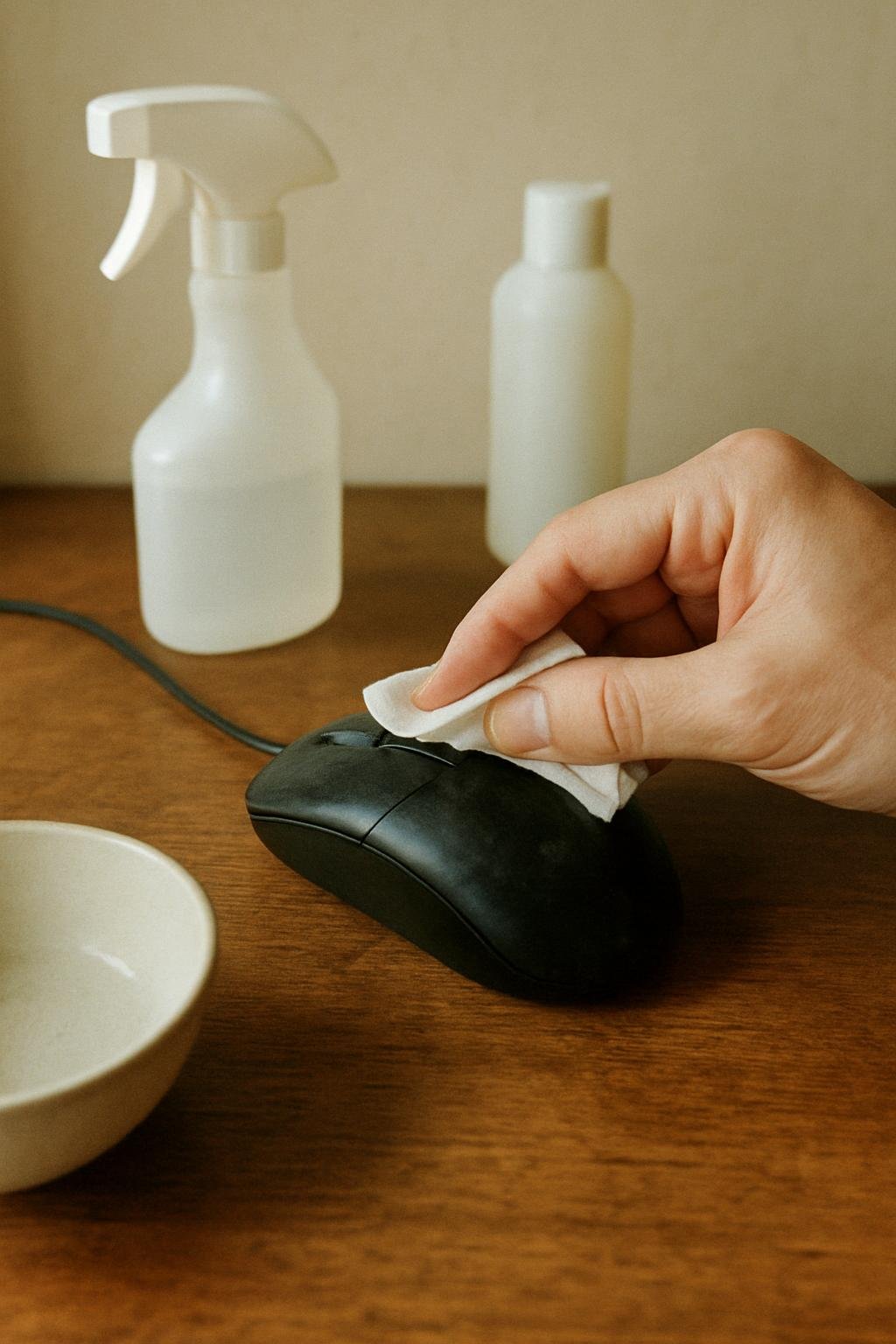
- Wipe the outer shell. Dampen a microfiber cloth with water, wring it out well so it’s barely moist, and wipe the top, sides, and bottom. Avoid pressing liquid into seams or button gaps.
- Clean around the buttons. Use a dry cotton swab to reach the narrow gap around the left and right click buttons, where oils and dust tend to collect.
- Address the scroll wheel. Dust and skin oils often build up along the sides of the wheel and cause it to skip or feel gritty. Use a dry swab or the corner of a soft cloth to clean along the wheel’s edges, and gently rotate it as you go to reach the full surface.
- Clear the underside. Wipe the optical sensor or laser lens with a dry cotton swab only. Do not use liquid here, since moisture near the sensor can affect tracking accuracy.
- Check the mouse feet or glide pads. If they’re grimy, wipe them with a dry cloth. Sticky or worn feet can make cursor movement feel uneven even after everything else is clean.
- Let it air dry fully. Give the mouse at least 15 to 20 minutes before reconnecting it or replacing the battery, longer if any part still feels damp to the touch.
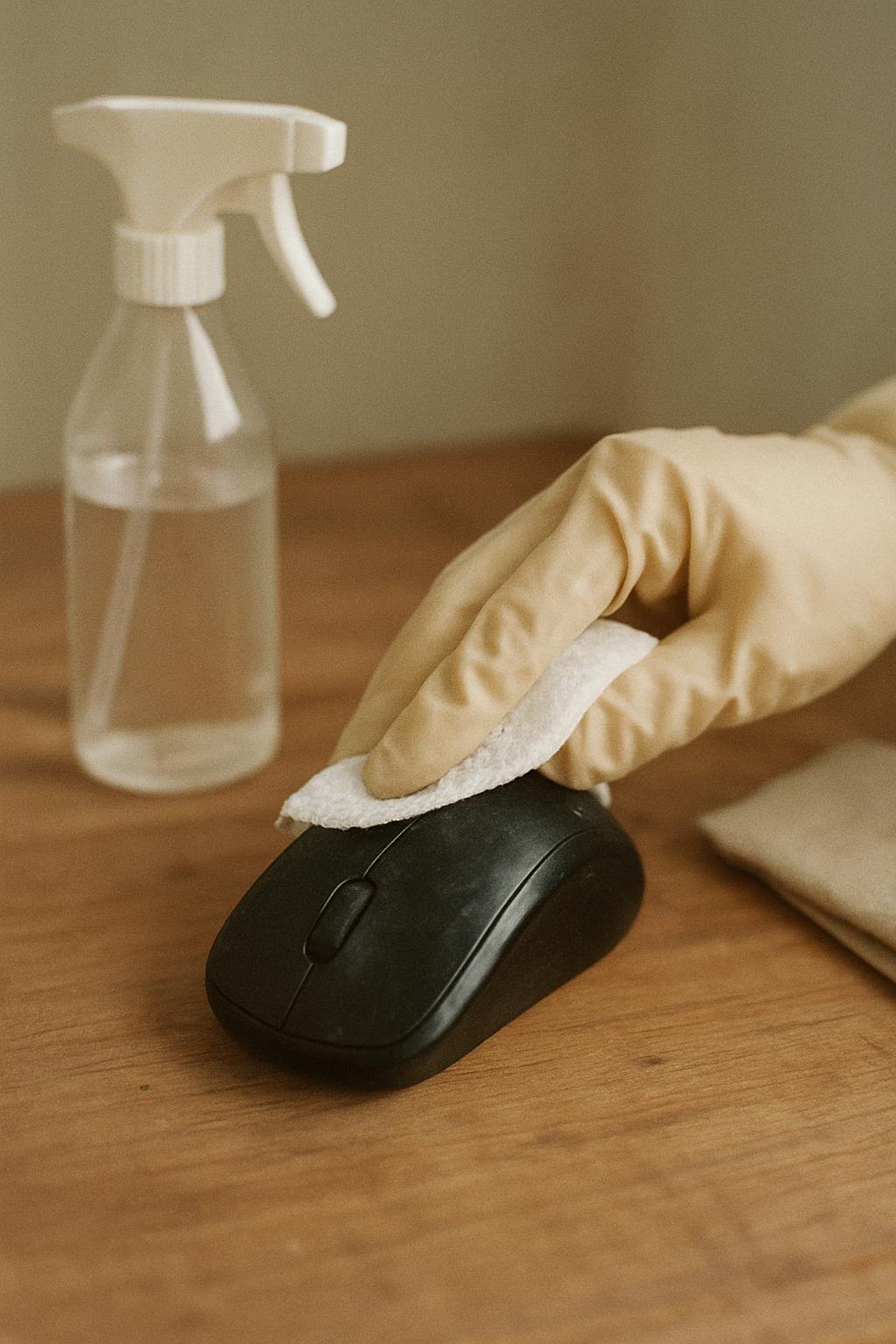
Safe Cleaner for a Computer Mouse
Plain water on a microfiber cloth is the safest option for the shell and handles most everyday grime. If you need something stronger for stubborn stickiness, a small amount of isopropyl alcohol on a cotton swab can help on hard plastic surfaces, but test it first on a small, hidden spot to check for discoloration or a change in finish. Avoid alcohol entirely on soft-touch or rubberized coatings.
Skip dish soap, glass cleaner, or all-purpose sprays. These often leave a residue that attracts more dust or can seep into button gaps and cause sticking over time. Never spray any cleaner directly onto the mouse; apply it to your cloth or swab instead.
Cleaning Mistakes to Avoid
- Cleaning while it’s still connected. Leaving a wired mouse plugged in, or leaving batteries in a wireless one, adds unnecessary risk if moisture reaches an internal contact.
- Soaking the mouse or running it under water. Even a brief dunk can force water into the shell around the buttons or scroll wheel, where it’s hard to fully dry.
- Spraying cleaner directly onto the shell. Liquid can run into seams faster than you can wipe it away. Apply cleaner to the cloth instead.
- Using alcohol on soft-touch coatings. This can leave the surface tacky, cloudy, or peeling, and the damage usually isn’t reversible.
- Reconnecting before it’s dry. Plugging in a still-damp mouse risks a short or erratic behavior. Give it time to air dry completely.
How Often to Clean a Computer Mouse
A quick wipe-down every week or two keeps oils and dust from building up, especially if you eat near your desk or use the mouse heavily. A deeper clean, including the scroll wheel and button gaps, every one to two months is usually enough for most home and office use. If you notice sticky buttons, a skipping scroll wheel, or a grimy feel sooner than that, clean it as needed rather than waiting for a set schedule.
When Cleaning Isn’t Enough
If the scroll wheel still skips or feels loose after a thorough cleaning and full drying time, the issue may be mechanical wear inside the encoder rather than dirt. Similarly, if the cursor jumps or lags after cleaning and drying, the sensor or internal connections may need professional evaluation rather than another cleaning attempt. At that point, checking the manufacturer’s warranty or support options is a more practical next step than continued cleaning.
Keeping your workspace generally tidy also helps reduce how often you need to deep-clean your accessories. If you’re working through other cleaning projects around the house, you might find related guidance useful, such as cleaning a rug without a carpet cleaner or cleaning an oven without chemicals.
Everything Mentioned Above
Before you leave, grab the tools you need to get the job done right the first time:
*As an Amazon Associate, TidyFormula earns from qualifying purchases.