How to Clean a Laptop Screen without Streaks
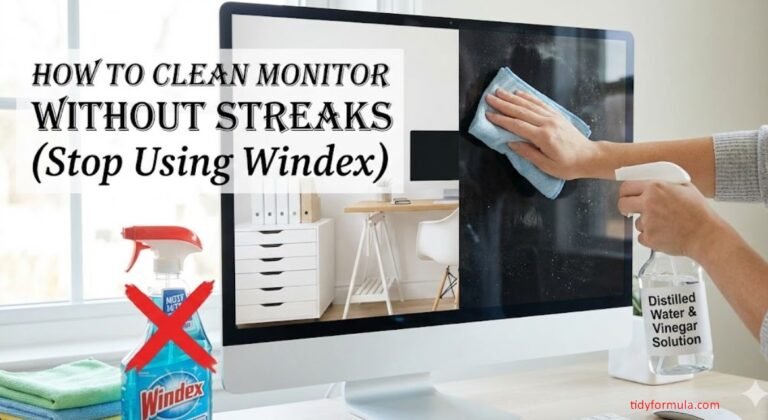
The safest way to clean a laptop screen without streaks is to power it off, use a dry microfiber cloth first, and follow with a cloth barely dampened with distilled water or a 50/50 water-and-distilled-white-vinegar mix only if your manufacturer allows it. Wipe gently in straight lines instead of circles, and never spray liquid directly onto the screen.
Streaks usually happen because of leftover residue from cleaners with additives, too much liquid, or wiping with a cloth that isn’t clean itself. On laptops with anti-glare or matte coatings, the wrong cleaner can leave a hazy film that’s even harder to remove than the original smudge.
⚡ The TidyFormula™ Quick Decision
Best approach: Power down the laptop, dust with a dry microfiber cloth, then wipe with a cloth lightly dampened with distilled water in straight, overlapping passes.
Use caution with: Glossy, matte, and anti-glare coatings react differently to moisture and pressure, so check your manufacturer’s cleaning instructions before using anything beyond water.
Stop and reassess if: You see cloudiness under the surface, discoloration, or moisture creeping toward the edges or hinge — that calls for a manufacturer or repair professional, not more cleaning.
What I Use For This Job
Using the right tools saves time and protects your belongings. Here are my exact recommendations:
*As an Amazon Associate, TidyFormula earns from qualifying purchases.
Check Your Laptop’s Screen Coating First
Not every laptop screen is built the same way, and that matters more here than with most surfaces you clean at home. Many modern laptops use an anti-glare or matte coating on top of the glass or plastic layer, while others have a glossy, uncoated finish. Coated screens are more prone to streaking and can be damaged by alcohol-based or ammonia-based cleaners, which may strip or cloud the coating over time.
If you’re not sure what your screen has, check the manufacturer’s support page or the original packaging. When in doubt, treat the screen as coated and stick to the gentlest method available: dry microfiber first, distilled water second.
What You’ll Need
- A clean, soft microfiber cloth (a second one if you plan to dampen it)
- Distilled water — tap water can leave mineral streaks as it dries
- Optional: a small spray bottle for misting the cloth, not the screen
Skip paper towels, tissues, and cotton cloths. They’re more likely to leave lint or fine scratches, which show up as new streaking under bright light.
Step-by-Step: Cleaning a Laptop Screen Without Streaks
- Power off the laptop and unplug the charger. Cleaning a lit screen makes it harder to see streaks while you work, and a fully off, unpowered screen is the safer condition to clean around any vents or ports.
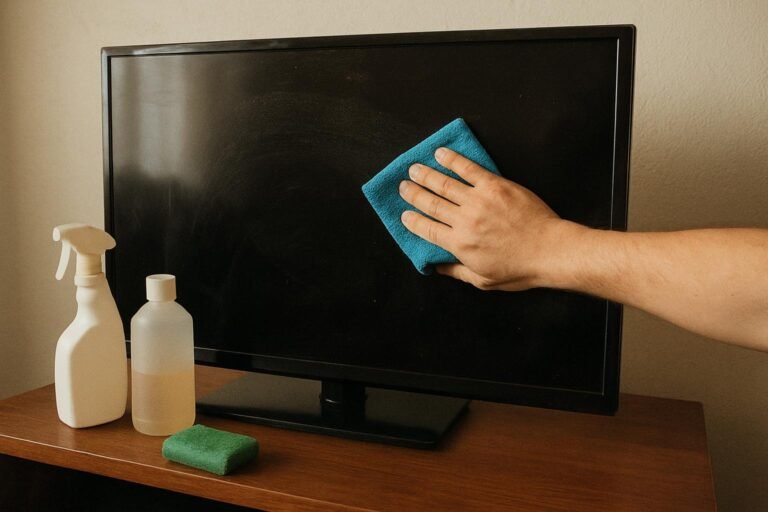
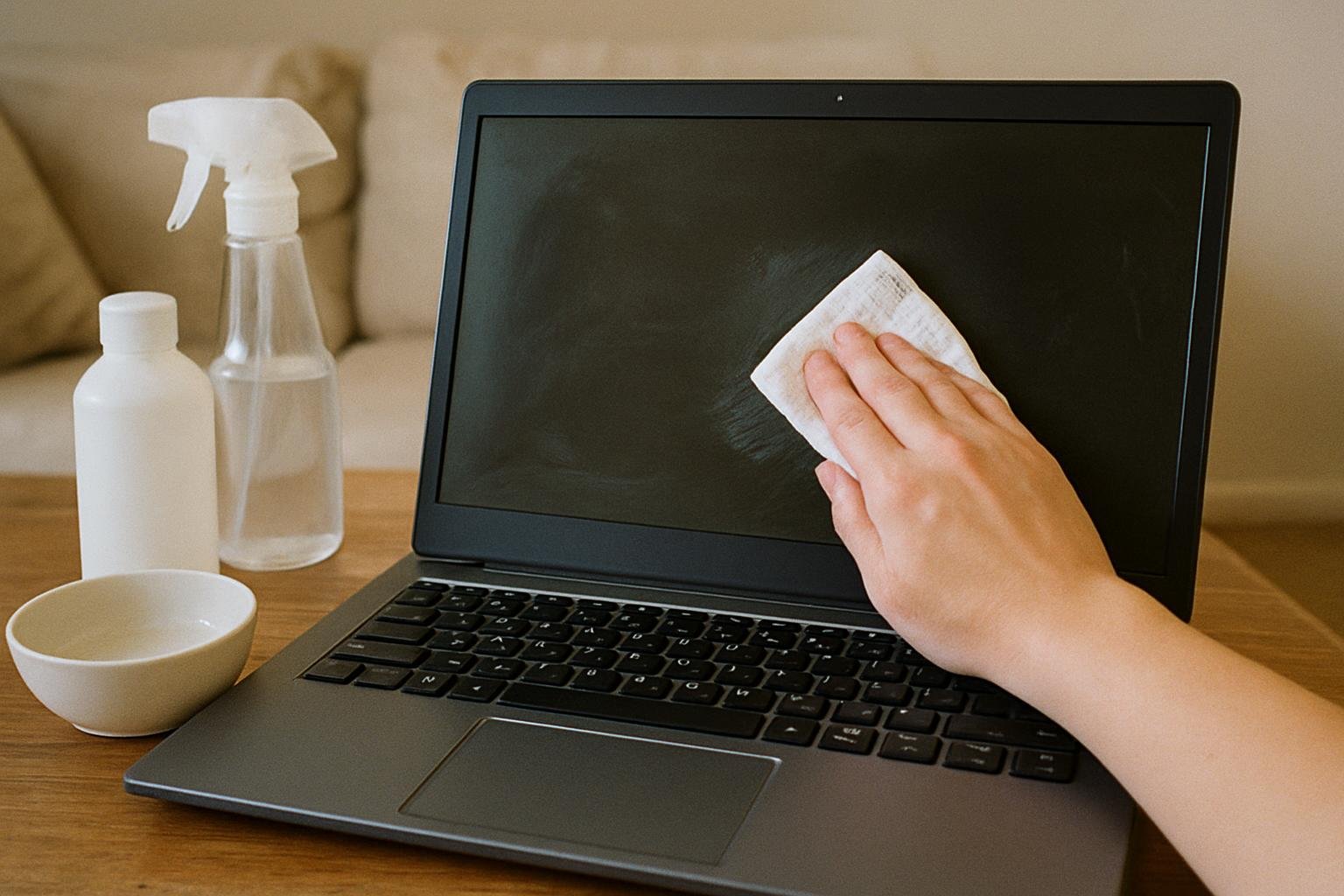
- Dust the screen with a dry microfiber cloth. Use light, straight strokes to lift loose dust and fingerprints before adding any moisture. This step alone resolves a surprising number of smudges.
- Lightly dampen a second microfiber cloth with distilled water. The cloth should feel barely moist, not wet. If you squeeze it and see drops form, it’s too wet for a screen.
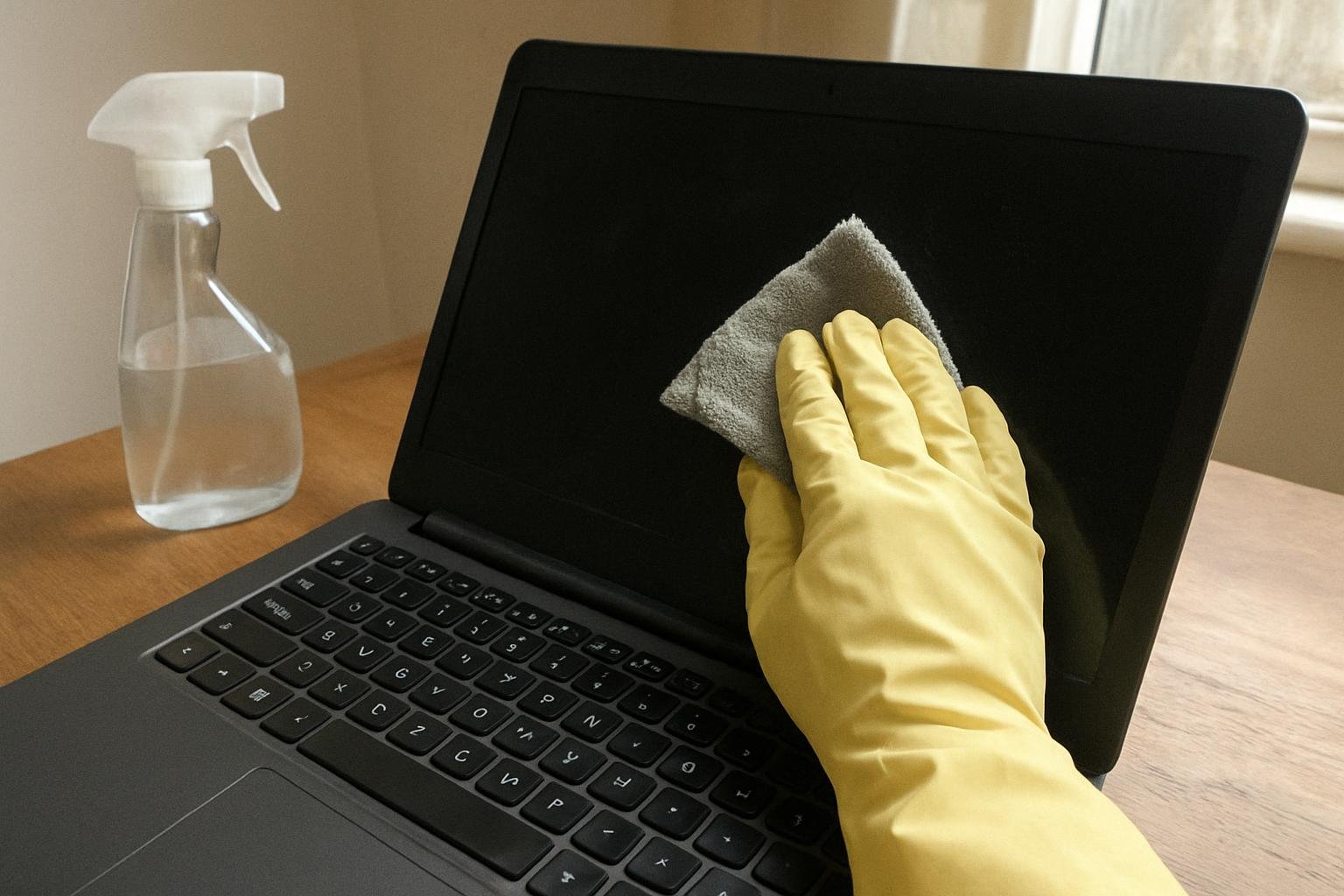
- Wipe in one direction, top to bottom or side to side. Avoid circular motions, which tend to smear residue rather than lift it, and avoid pressing hard on any one spot.
- Follow with a dry microfiber cloth to remove any remaining moisture. This final pass is often what prevents streaking, since it catches residue before it dries on the surface.
- Let the screen air dry for a minute before closing the lid or powering on. Closing a laptop on a still-damp screen can transfer moisture to the keyboard.
When Distilled Water Isn’t Enough
For sticky residue, fingerprint buildup, or dried-on splatter, a 50/50 mix of distilled water and white vinegar is a common household approach, but it’s not universally safe for every screen coating. If your laptop manufacturer explicitly permits it, apply the mix to the cloth, never directly to the screen, and use the same straight-line wiping method. If your manual says to avoid vinegar, alcohol, or ammonia-based products, follow that instruction over any general cleaning advice, since coating formulas vary by brand and even by model year.
Never spray cleaner directly onto the screen. Liquid can seep past the bezel into the edges, and on some laptops that moisture can reach internal components.
Common Mistakes That Cause Streaking
| Mistake | Why It Streaks | Better Approach |
|---|---|---|
| Using tap water | Minerals in tap water dry into faint film lines | Use distilled water instead |
| Wiping in circles | Smears residue instead of lifting it | Wipe in straight, overlapping lines |
| Spraying the screen directly | Leaves uneven wet patches that dry unevenly | Dampen the cloth, not the screen |
| Using glass cleaner made for windows | Ammonia and alcohol can haze coated screens | Stick to distilled water or manufacturer-approved cleaner |
| Reusing a dusty cloth | Trapped grit can scratch and leave fine streak lines | Use a clean microfiber cloth each time |
How Often to Clean a Laptop Screen
A quick dry microfiber wipe every few days keeps dust and fingerprints from building up, while a full water-based cleaning once every one to two weeks is usually enough for most home and office use. Screens that get more direct contact, like touchscreens or laptops used in a kitchen, may need attention more often. There’s no need to clean more frequently than that, and doing so only increases the chance of introducing streaks or moisture issues.
When to Stop and Call in Help
If you notice moisture pooling near the bezel, a cloudy patch that doesn’t wipe away, discoloration, or dead pixels appearing after cleaning, stop cleaning and contact the manufacturer or a qualified repair technician. These signs can indicate the coating has been damaged or that liquid has reached internal layers, and further wiping is unlikely to help. If your laptop is still under warranty, check the manufacturer’s cleaning guidance before attempting any repair yourself, since unauthorized disassembly can void coverage.
The same core idea — dry first, minimal moisture second, straight wiping motions always — applies to other reflective surfaces around your home. If you’re tackling glass elsewhere, the approach in How to Clean Windows Without Streaks uses similar logic, and if your car’s windshield fogs with residue, How to Clean Inside of Windshield Without Streaks covers a comparable streak-free method for that surface.
Everything Mentioned Above
Before you leave, grab the tools you need to get the job done right the first time:
*As an Amazon Associate, TidyFormula earns from qualifying purchases.